

Managing your Integration
Introduction
Certified integrators will receive user credentials to log into a partner account, where various aspects of an integration can be managed. These are described below in further detail.
Obtain your Client ID & Secret
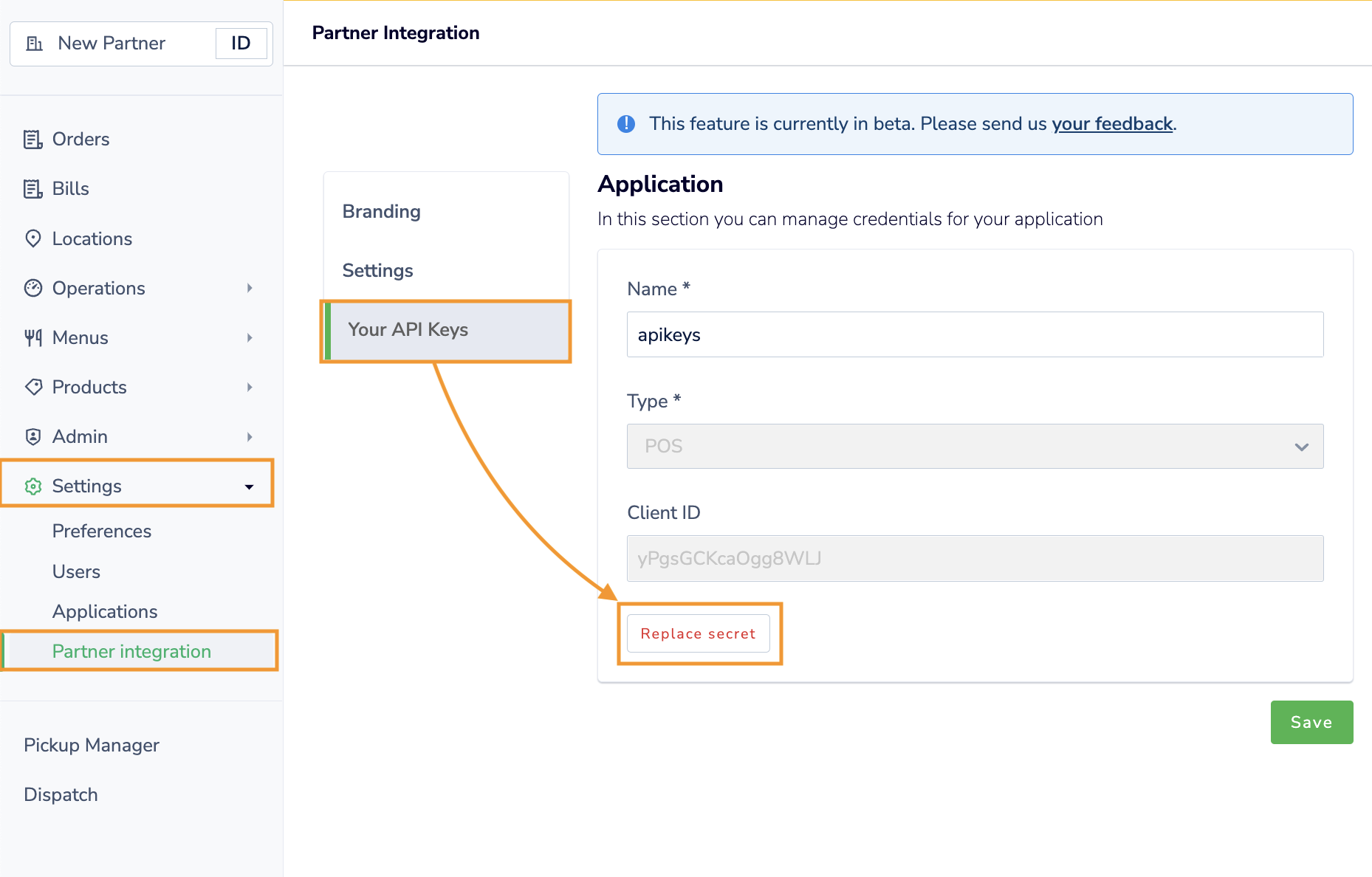
To obtain your Client ID and Secret follow the below steps;
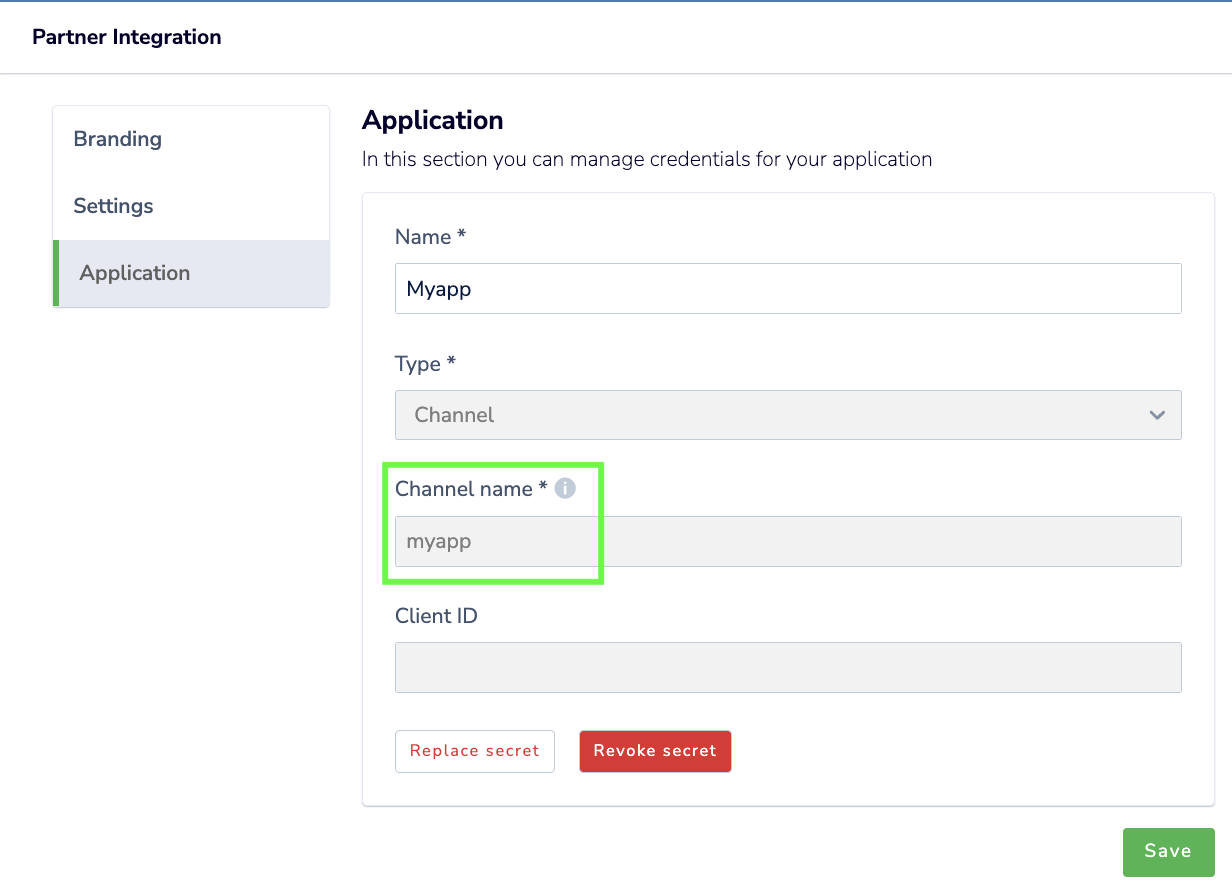
Step 1: Go to Settings > Partner Integration > Application
Step 2: Click on the section titled with your integration name
Step 3: You should re-generate the secret by clicking on "Replace Secret" and ensure this is safely stored.
HMAC Secret
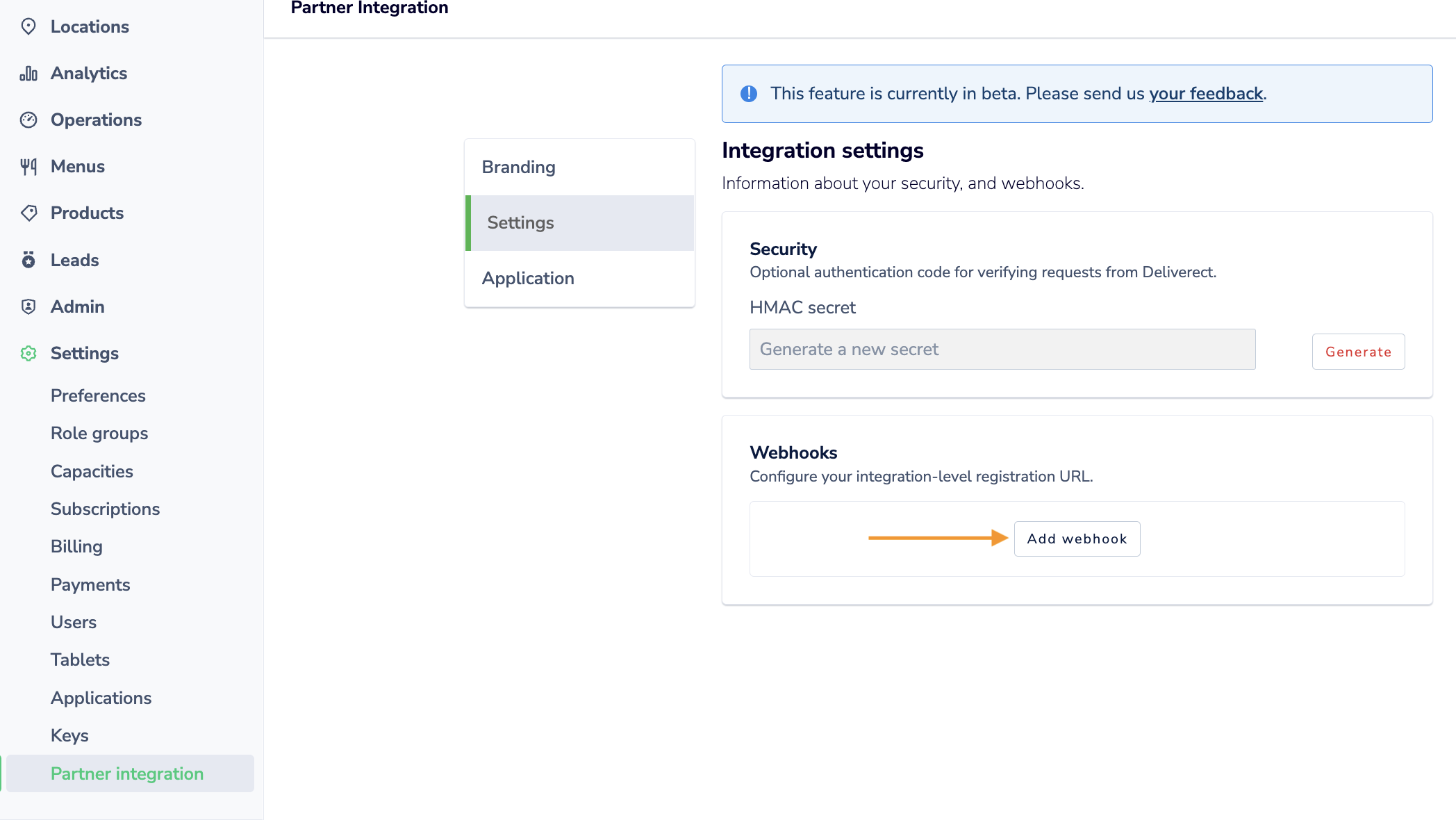
Authenticating requests with an HMAC secret is optional, but you can generate this as required.
Registration URL
As almost all integrating partners will require a standardised registration URL, you can configure this to apply to all your accounts via the section 'Webhooks' > 'Add webhook'.
Branding
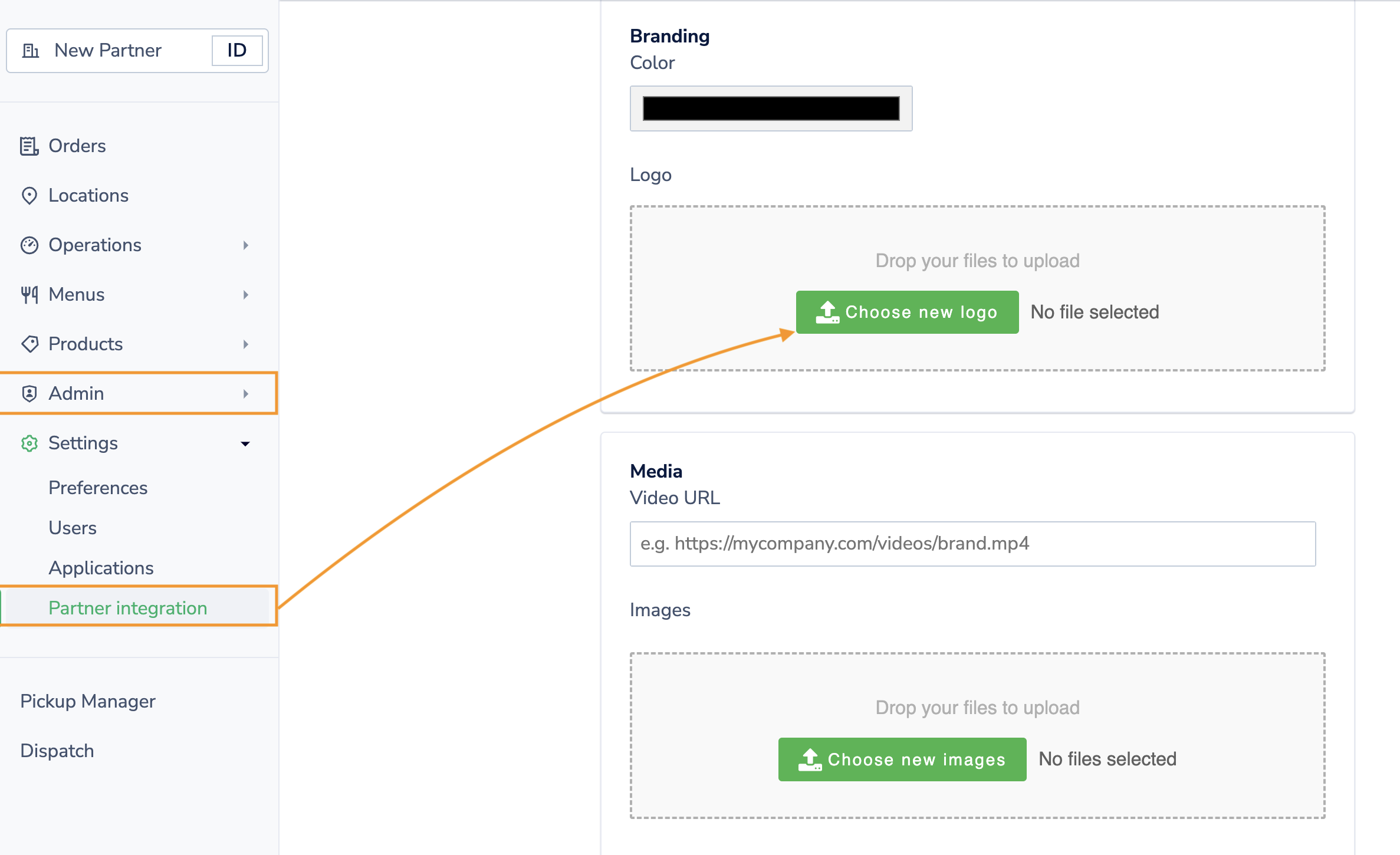
You can amend your logo and set your brand colour by following the below steps:
Step 1: From 'Partner Integrations', click on 'Branding'
Step 2: Click to upload new logo file in PNG format with transparent background
Step 3: Click 'Color' and enter your RGB colour or select from the color wheel
Step 4: Please also add any other helpful information about your integration e.g.
- A recording of your integration or promotional video content (not essential)
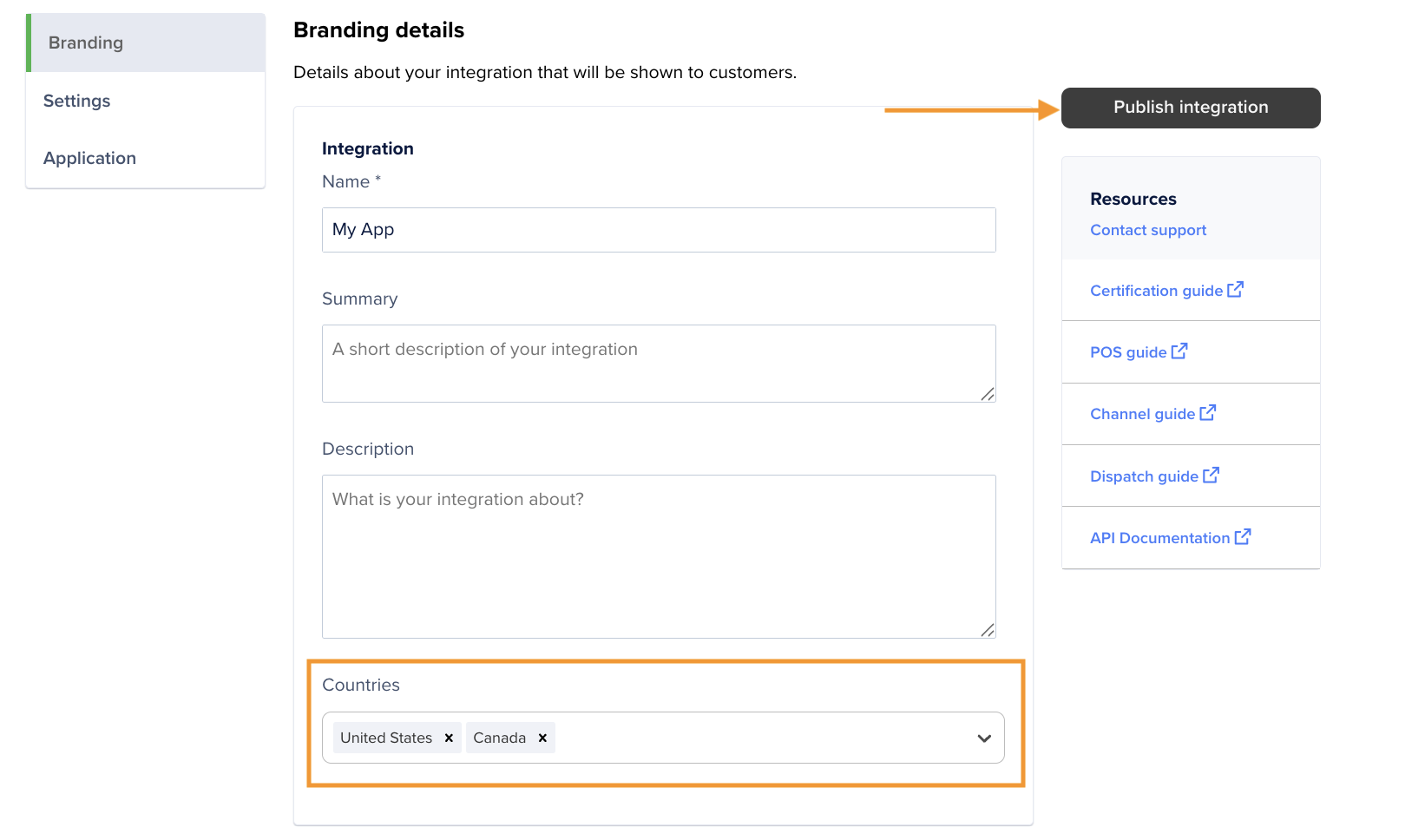
- Countries in which you are active (important for website listings)
- Long and short description of your platform (to be visible on our Marketplace)
- Website, Privacy Policy and FAQ URLs (included in your Marketplace listing)
Step 5: Scroll down to the bottom of the page and click on "Save"
Channel Partner Settings
Below settings are specific to any channel integration;
Publish your Integration
Deliverect offer a self-serve flow for customers to browse available channels in their region (guide here).
To appear in this list, there are two requirements;
- A standardised 'Registration URL'
- One or more 'Countries' specified where your channel is available
Once these are in place, the 'Publish Integration' button can be selected to display your channel.
Obtaining a Channel 'Scope'
For any certified channel partner, the 'Application' section will display your assigned 'Channel Name' which would form your 'scope' used when creating orders
Updated 3 months ago