

How to configure Meal Deals / Combos
Introduction
A meal deal or combo will typically have a set price, where a grouping of a 'bundle' can contain products which normally have a price, but as part of a bundle will be zero-priced.
Format
A meal deal/combo structrue requires two components;
- A product with a flag
"isCombo": true - A bundle group
"productType": 4with a"subProducts"array of products"productType": 1
Structure
The structure to form bundles would be as follows, as shown it is possible to include 'Nested Modifier Groups' containing priced items underneath the bundle product.
- Combo product
Type:1 - Bundle
Type:4- Product
Type:1- Modifier group
Type:3- Modifier
Type:2
- Modifier
- Modifier group
- Product
Structure Diagram
%%{init: { "theme": "base", "themeVariables": { "fontSize": "13px", "background": "transparent", "lineColor": "#64748b", "edgeLabelBackground": "transparent", "actorBkg": "#038851", "actorTextColor": "#ffffff", "actorBorder": "#026139", "actorLineColor": "#94a3b8", "signalColor": "#64748b", "signalTextColor": "#059669", "noteBkgColor": "#e6f4ee", "noteTextColor": "#02502f", "noteBorderColor": "#038851", "activationBkgColor": "#c6ebdc", "activationBorderColor": "#026139", "sequenceNumberColor": "#ffffff" }, "flowchart": { "nodeSpacing": 25, "rankSpacing": 35, "padding": 8, "useMaxWidth": true }, "sequence": { "useMaxWidth": true, "actorMargin": 70, "width": 150, "height": 60, "boxMargin": 12, "noteMargin": 14, "messageMargin": 50, "diagramMarginX": 20, "diagramMarginY": 20, "actorFontSize": 18, "actorFontWeight": 700, "noteFontSize": 15, "noteFontFamily": "ui-monospace, SFMono-Regular, Menlo, Consolas, monospace", "messageFontSize": 16, "messageFontWeight": 700, "noteAlign": "left", "mirrorActors": false } }}%%
flowchart TD
    Combo["<b>Combo</b><br/>'productType': 1<br/>'isCombo': true"]
    B1["<b>Bundle</b><br/>'productType': 4"]
    B2["<b>Bundle</b><br/>'productType': 4"]
    B3["<b>Bundle</b><br/>'productType': 4"]
    P1["<b>Product</b><br/>'productType': 1"]
    P2["<b>Product</b><br/>'productType': 1"]
    P3["<b>Product</b><br/>'productType': 1"]

    Combo --> B1
    Combo --> B2
    Combo --> B3
    B1 --> P1
    B2 --> P2
    B3 --> P3

    classDef combo fill:#fdf1dc,stroke:#8a7a4f,color:#3a2f1a,stroke-width:2px;
    classDef bundle fill:#038851,stroke:#026139,color:#ffffff,stroke-width:2px;
    classDef product fill:#FDECEC,stroke:#d98a8a,color:#5a1f1f,stroke-width:2px;

    class Combo combo;
    class B1,B2,B3 bundle;
    class P1,P2,P3 product;
Set Multiple Bundle Groups
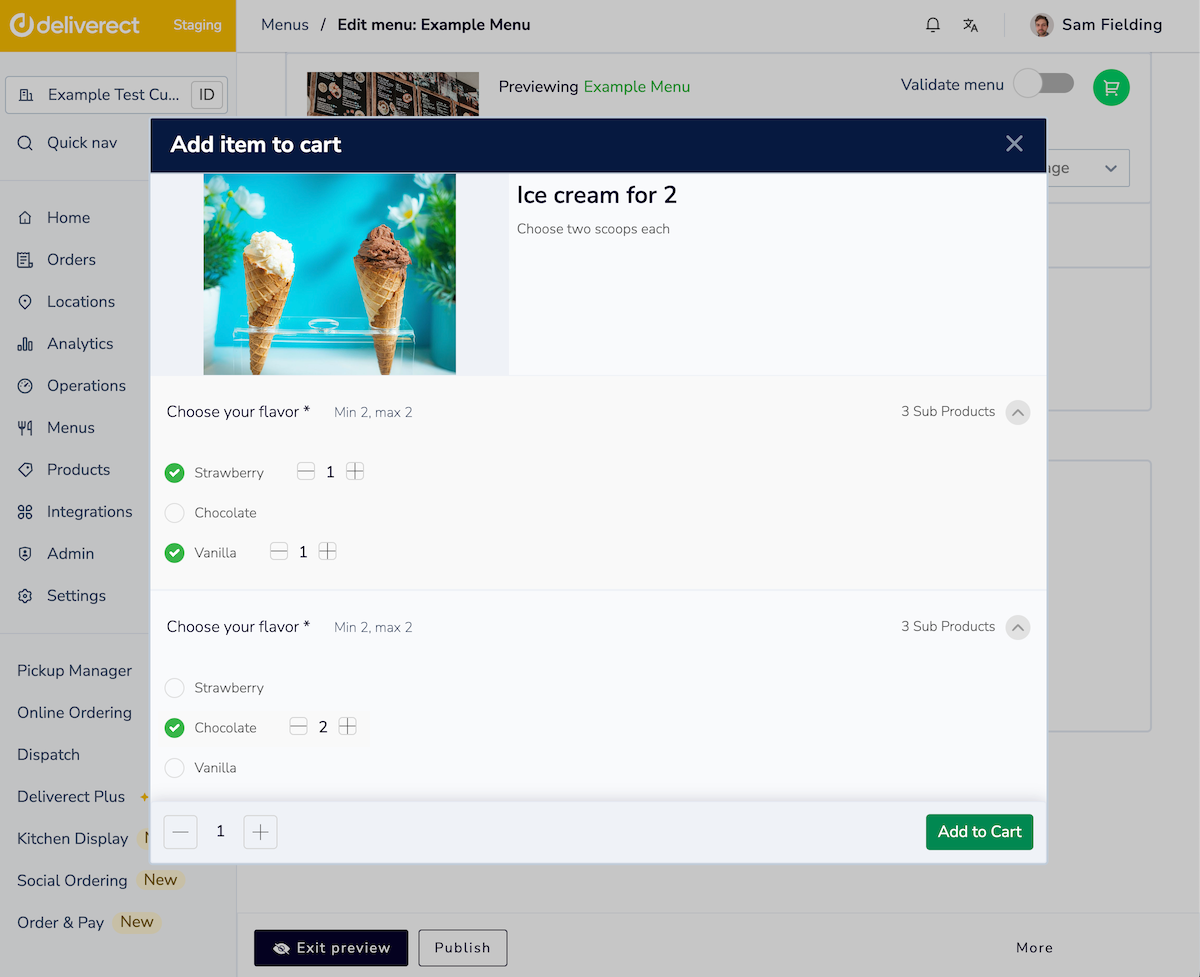
To repeat a Bundle product group "productType": 4 a specified number of times, an attribute "multiply" can be applied. For example, if the value is "multiply":3, then you can expect a Bundle group to be offered three times.
This can be used when creating a meal deal containing bundles that require choosing from more than once e.g. when ordering a product for more than one person or a group, where each person chooses their variation of a Bundle.
The screenshot below shows a product for two ice creams. It contains a modifier group that has a "multiply": 2, requiring customers to select two types of ice creams.
Example
The example below shows how the example ice cream product would be synced from the POS;
{
  "products": [
    {
      "name": "Ice cream for 2",
      "productType": 1,
      "plu": "473",
      "price": 1025,
      "deliveryTax": 5000,
      "takeawayTax": 5000,
      "subProducts": [
        "1411"
      ]
    },
    {
      "productType": 4,
      "plu": "1411",
      "name": "Choose your flavor",
      "subProducts": [
        "STRAWB1",
        "CHOC1",
        "VANIL1"
      ],
      "min": 2,
      "max": 2,
      "multiMax": 2,
      "multiply": 2
    },
    {
      "name": "Strawberry",
      "productType": 1,
      "plu": "STRAWB1",
      "price": 500,
      "imageUrl": "",
      "description": "",
      "deliveryTax": 9000,
      "takeawayTax": 9000
    },
    {
      "name": "Chocolate",
      "productType": 1,
      "plu": "CHOC1",
      "price": 500,
      "deliveryTax": 9000,
      "takeawayTax": 9000
    },
    {
      "name": "Vanilla",
      "productType": 1,
      "plu": "VANIL1",
      "price": 500,
      "deliveryTax": 9000,
      "takeawayTax": 9000
    }
  ]
}
Updated 2 months ago