

How to receive Test Orders
Introduction
Deliverect receives orders from online channels and parses them. We then deliver a standardized order format to our POS partners via webhook.
Each physical POS locations has a unique location id, which be included in the order payload. For example, "location": "61d12a52b1acd9a72b143aaf",
Similarly, as a POS can receive orders from numerous integrated channels, Deliverect processes these orders by defining the unique channel id of the ordering platform. To find these channel Ids, use the GET Integrated Channels endpoint to return all available channels.
When the mapping is implemented, the channel name should show;
- When printing a ticket, so he merchant knows which channel is expected to collect it.
- On-screen as information for users/kitchen teams to manage orders e.g. to inform which packaging to use and the collection point.
- Channel information in order and sales reporting.
Where to view the channel in an order
Step 1. Go to the Orders page, select an order, and go to the POS Order tab.
Step 2. Look for "channel" to find a value that corresponds to a channel. In the example below, this is "channel": 1,.
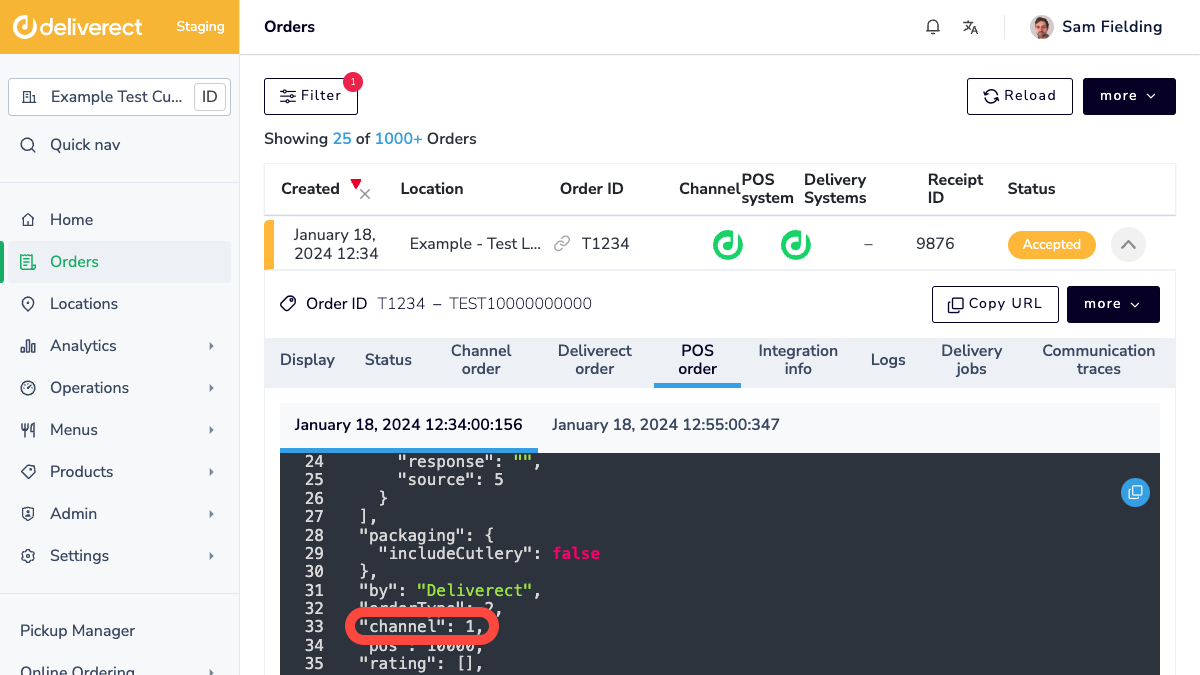
Find channel values
You can use the GET Integrated Channels endpoint to return all available channels.
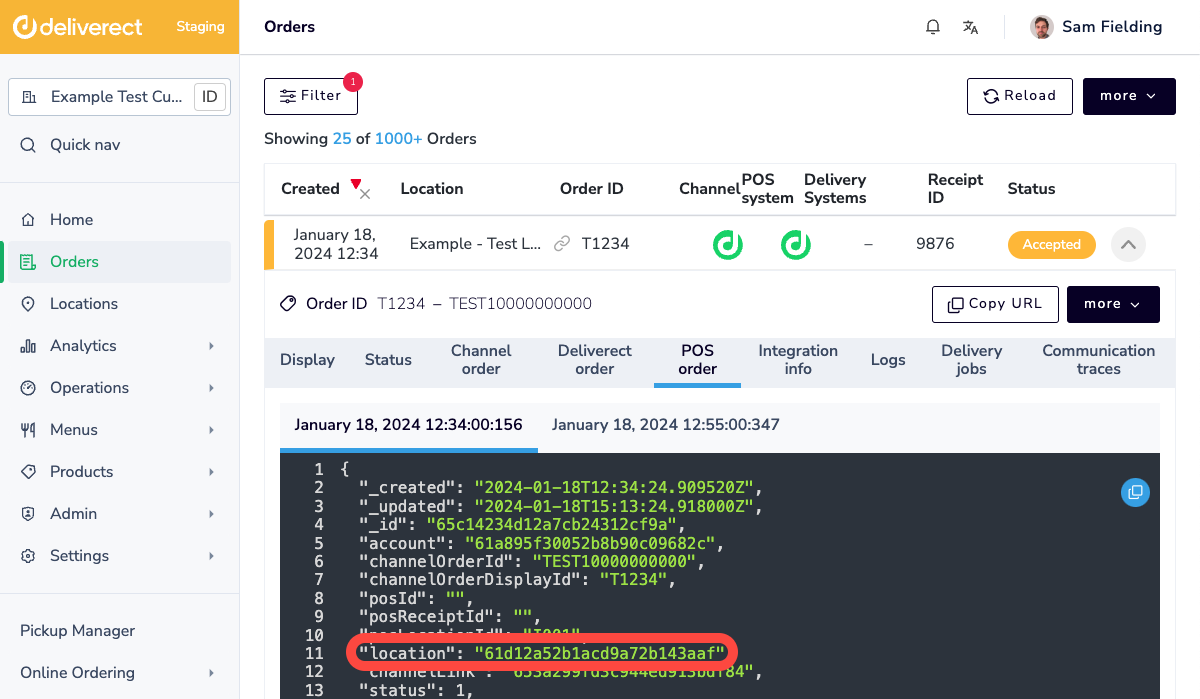
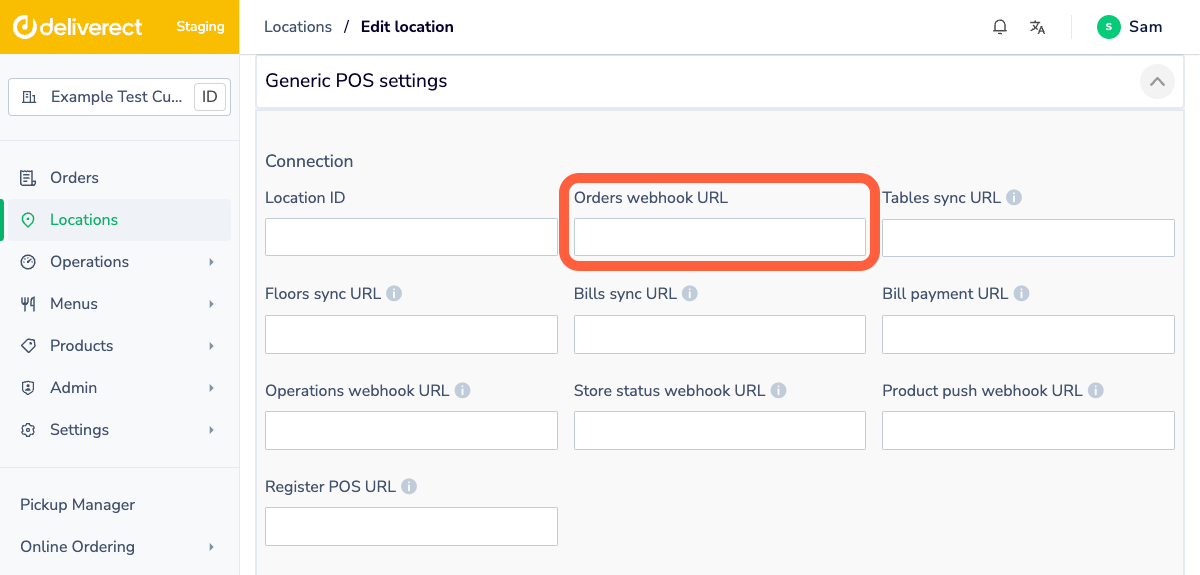
Where to enter the order webhook URL
Step 1. Go to the Locations page.
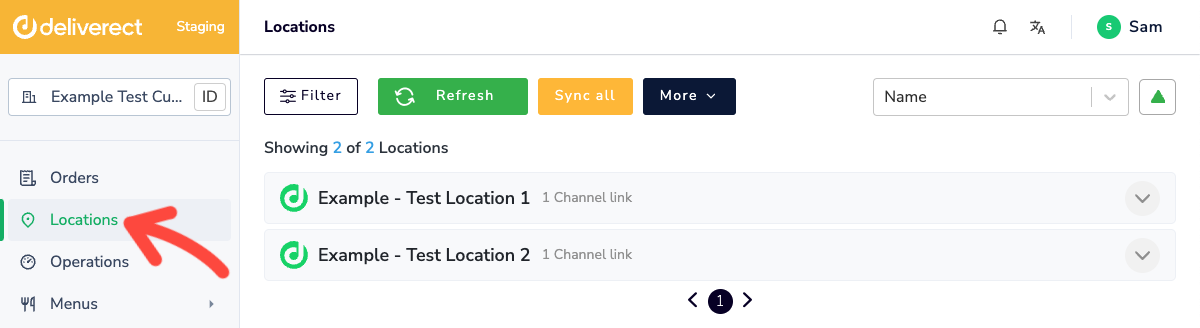
Step 2. Expand a location and select the Edit button.
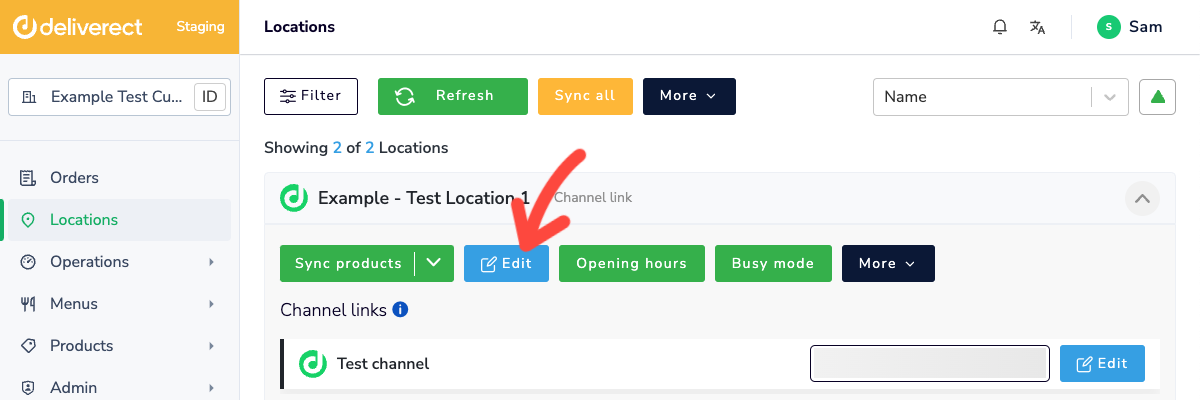
Step 3. Complete the Orders webhook URL field in the Generic POS Settings section.
Step 4. Select the Save button at the bottom of the page.
Updated about 1 month ago