

How to apply Discounts
Introduction
You can send order-level discounts and, optionally, provide metadata to describe the discount and any association to specific item(s) ordered.
Format
A single overall order discount should be specified as a negative value e.g. "discountTotal": -800
Where a discount is applied, the paid 'amount' should factor in any discount deducted from the total payment.
Example
Below is a simple example where and item at $10 has a "discountTotal": -150 which is adjusted to make a "payment.amount": 850
{
  "channelOrderId": "3298346",
  "channelOrderDisplayId": "8346",
  "orderType": 2,
  "orderIsAlreadyPaid": false,
  "payment": {
    "amount": 850,
    "type": 1
  },
  "items": [
    {
      "plu": "2500000009969",
      "name": "Tuna Poke",
      "price": 1000,
      "quantity": 1,
      "subItems": [
        {
          "plu": "B-0000000019545-3491",
          "name": "Rice",
          "price": 0,
          "quantity": 1
        }
      ]
    }
  ],
  "discountTotal": -150
}
Discounts reference to specific items
Wherever a specific item is included in a discount(s) e.g. of type item_flat_off , item_free etc you can reference the discount within the order"items" array with a "discountReferenceIds" per item.
As shown below, the Tuna Poke has a "referenceId": 1 which corresponds to the "referenceId": 1, included in the "discounts": [] array
{
  "items": [
    {
      "plu": "2500000009969",
      "name": "Tuna Poke",
      "price": 800,
      "quantity": 1,
      "discountReferenceIds": [
        1
      ]
    }
  ],
  "discounts": [
    {
        "type": "item_flat_off",
        "provider": "restaurant",
        "name": "MEMBERDISCOUNT",
        "channelDiscountCode": "PK-22",
        "referenceId": 1,
        "value": 150,
        "amount": 150,
        "amountRestaurant": 150,
        "amountChannel": 0
    }
  ]
}
Discounts - Glossary
| Parameter | Meaning | Data Tye |
|---|---|---|
type | Mapped channel discount type from the list of Discount Types in Deliverect. | string |
provider | The issuer of the discount i.e. the one who bears the discounted amount. | string |
name | The name was given to the discount. | string |
channelDiscountCode | The unique discount code used by the channel | string |
referenceId | A unique number assigned to the discount and used to reference the discount on individual items on the order. | integer |
value | It is the flat amount of money or percentage covered by the discount which is stored with precision 2, so $1.50 -> 150,# 25.1% -> 2510 | integer |
amount | Actual amount discounted e.g. For 10% off on $50 bill, the value will be 1000 and amount will be 500. | integer |
amountRestaurant | The amount of the restaurant's contribution to the discount | integer |
amountChannel | The amount of the channel's contribution to the discount | integer |
Rebate
A rebate refers to a discount where the cost is covered by the channel, not the restaurant. It is essential for restaurants to clearly distinguish these rebates from discounts they absorb within their POS system.
When a rebate is applied, the full payment amount, prior to the rebate deduction, should be specified, as this is the amount the restaurant will receive.
{
  "payment": {
    "amount": 400,
    "type": 3,
    "due": 0,
    "rebate": 100,
    "commissionType": ""
  }
}
How discounts appear in an order
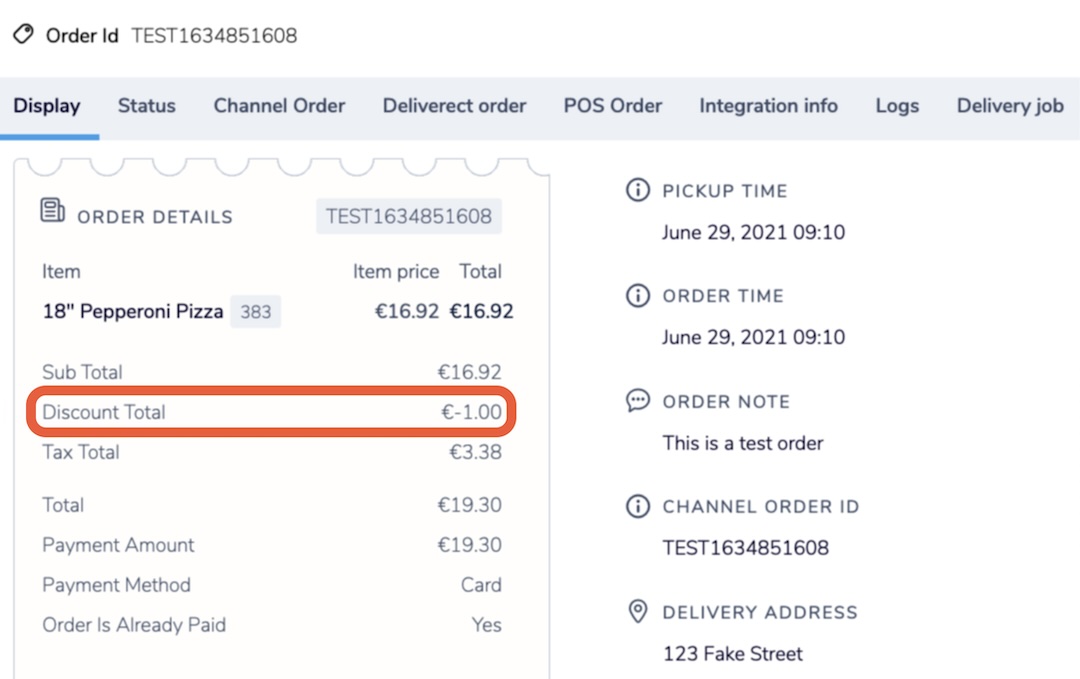
Send the discount total as a negative value.
For example, discountTotal: -100 applies a discount of 1 euro, or the equivalent unit for any currency used by the merchant, to the total order amount.
Troubleshooting
Order creation returns an error
If Deliverect returns "discountTotal": "Invalid value passed.", check that you send discountTotal as a negative number, such as "discountTotal": -100,.
You have added a discount, but it is not showing in Deliverect
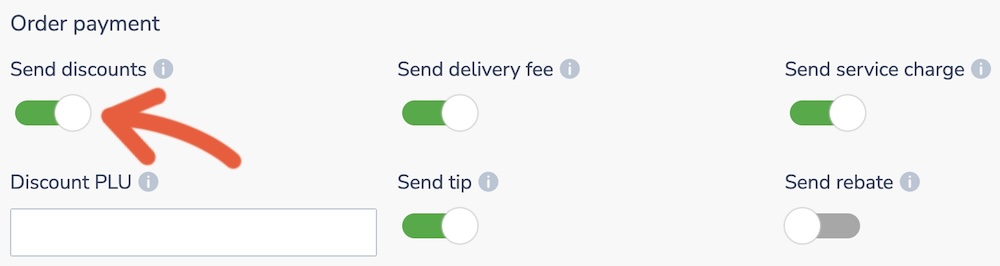
Check that the Send Discounts toggle is active for the Deliverect test channel to pass discounts onto the POS. You can activate this by going to the channel link settings page. Select the Show More toggle at the top right of the page if it is not visible.
Updated 2 months ago