

How to test Order Status Updates
Introduction
To test handling order status updates, you can either set a single default order status or use the Delivery Manager App (DMA) to test order status updates.
Receive order status updates
Firstly, you need to set an Order Status Webhook URL in the channel link settings for each channel being tested. Once in place, Deliverect sends every status to this URL as a webhook event.

1.Set default order status
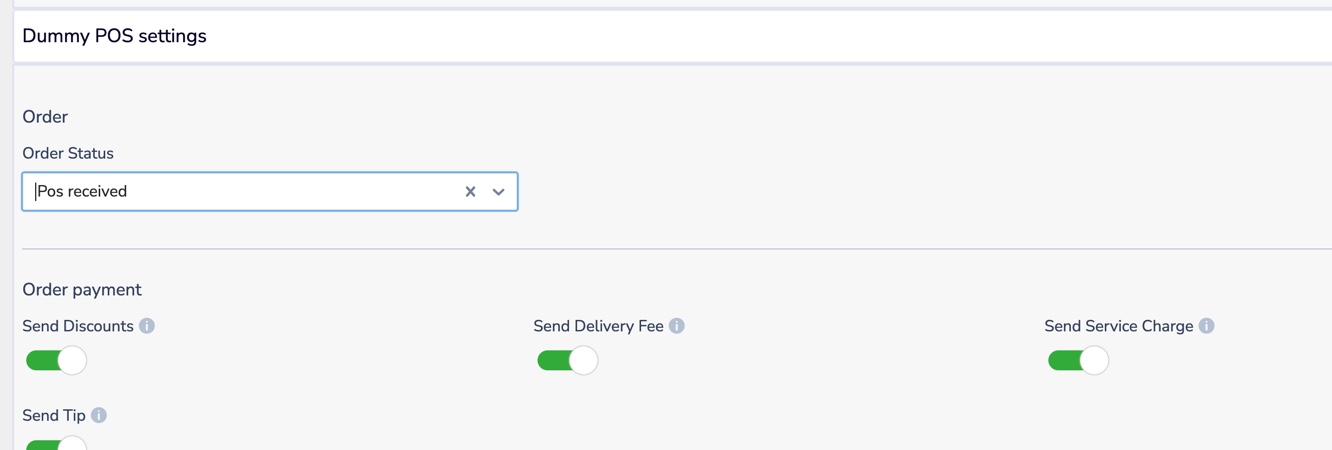
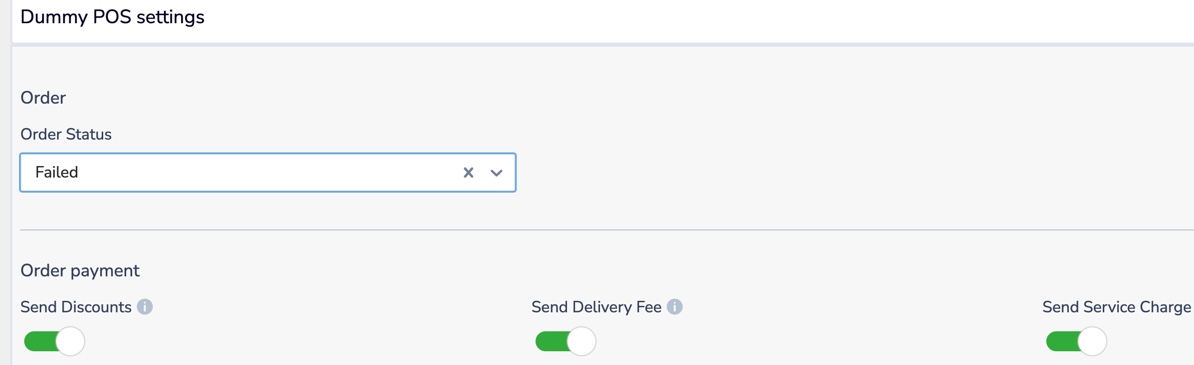
To simulate immediate order status updates e.g. an order failed upon POS injection, you can preset the order status in the channel settings. Edit your channel settings and scroll to Order > Order Status where the default value will be Pos received. If you update this to e.g. 'Failed', each time an order is created for this channel, the system will automatically assign a failed status.
Update statuses on the DMA app
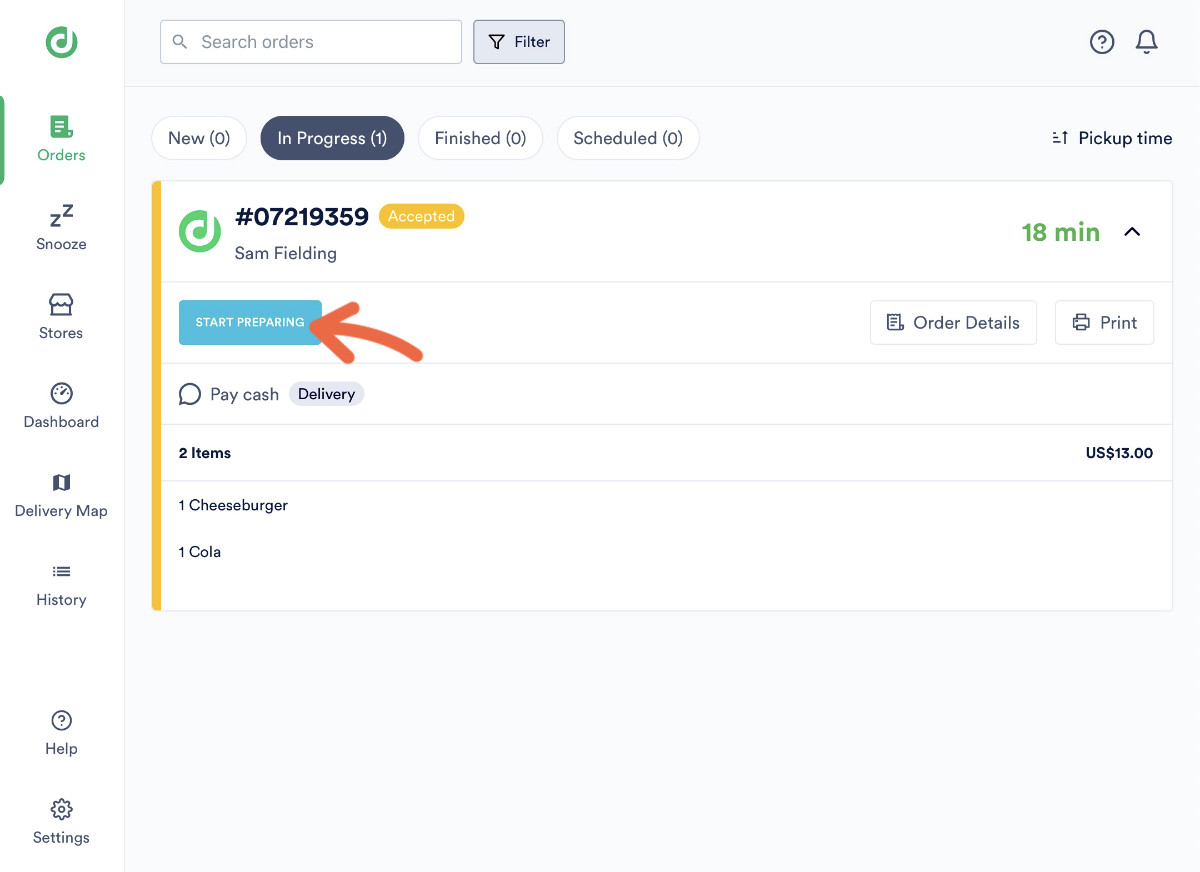
Use the Delivery Manager App (DMA) on an iPad or Android to apply the same status updates you can expect from an integrated POS e.g. 'Accepted' > 'Preparing' > 'Ready for Pickup'
When logged in to the app with a new user, you can begin accepting orders and applying incremental status updates
Updated 2 months ago