

How to test orders for Dispatch
How Orders for Delivery Are Sent
Delivery orders are processed and forwarded as webhook events to the endpoints provided by the Dispatch partner.
Confirming Orders for Delivery
Deliverect first sends a webhook that requests order validation. Once the order is confirmed as deliverable, Deliverect sends a second webhook to create the delivery job. These two steps Validate and Create are detailed below along with the process of Updating Delivery Jobs and handling Cancelled Orders
Configure Webhooks
Configure your dispatch webhooks before you receive delivery orders from Deliverect: follow the dispatch webhooks configuration guide.
Validate Webhook
Place a test order to confirm that Deliverect can validate your webhook (an HTTP callback URL that receives delivery job events).
- Create a test order from your test account by following Place a test order.
- Select Add Info in the basket and provide a valid delivery address before you place the order.
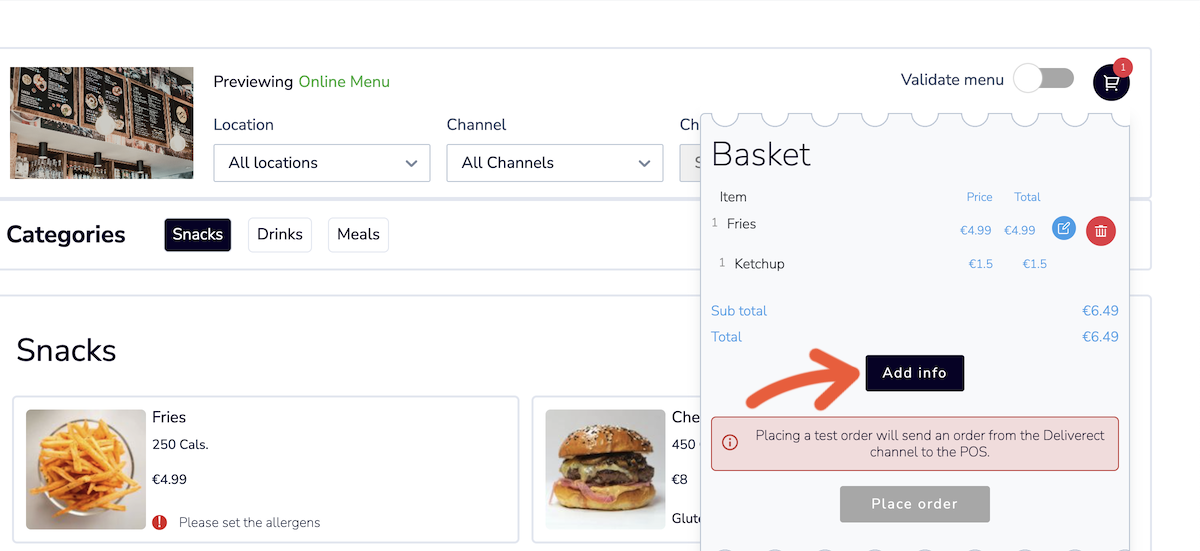
Select Add Info in the basket before placing the test order.
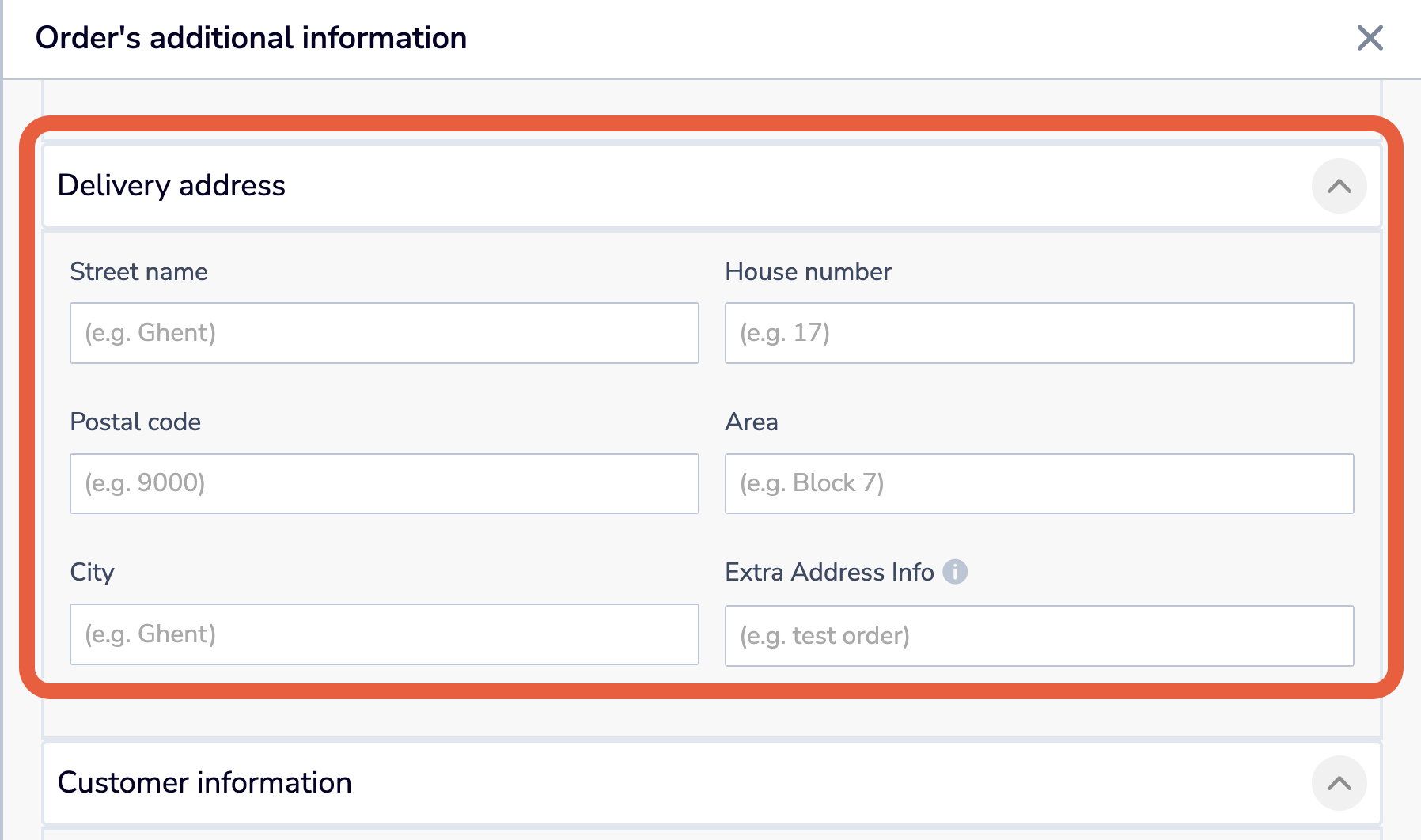
Enter a valid delivery address for the test order.
Check that the location also has a valid address. Go to Locations, then select Edit for the location.
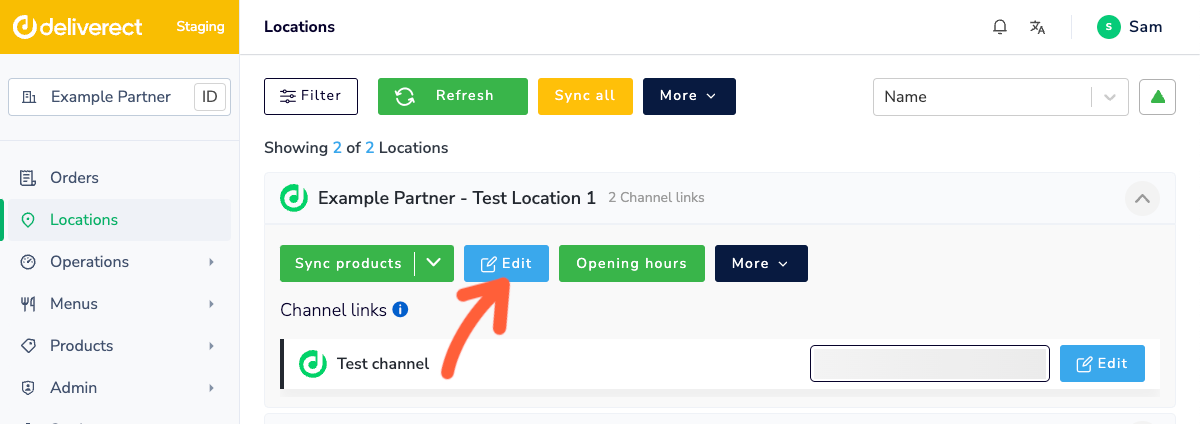
Open the location settings from the Locations page.
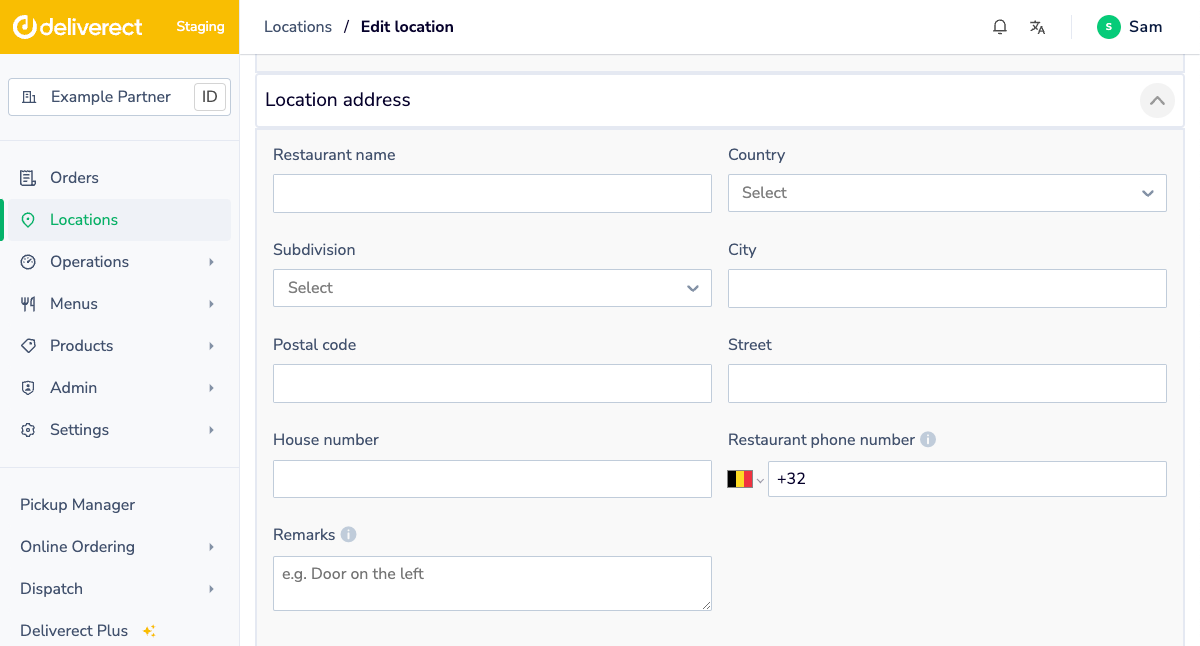
Confirm that the location has a valid address.
After you place the order, Deliverect validates the request to your webhook. Respond according to the samples in the public documentation.
Create Webhook
Once your webhook responds, you can view the order in the Delivery Manager App. Either manually Assign the order to your dispatch channel or wait two minutes for Deliverect to assign the order automatically.
Deliverect posts the event to your Create Webhook URL, which must respond according to the public technical documentation.
Update Endpoint
Call our Update endpoint to change the delivery job status, courier information, or estimated times of arrival (ETAs) for pick-up and delivery.
The final status is Delivered. Values and specifications are provided in the endpoint documentation.
You can track status updates:
- in the Delivery Manager App (explained here)
- in your Deliverect staging account, by navigating to the Orders page and selecting the order (explained here)
Cancel Webhook
Initiate the cancellation of a delivery job using the Delivery Manager App. Find the order and tap More order options.
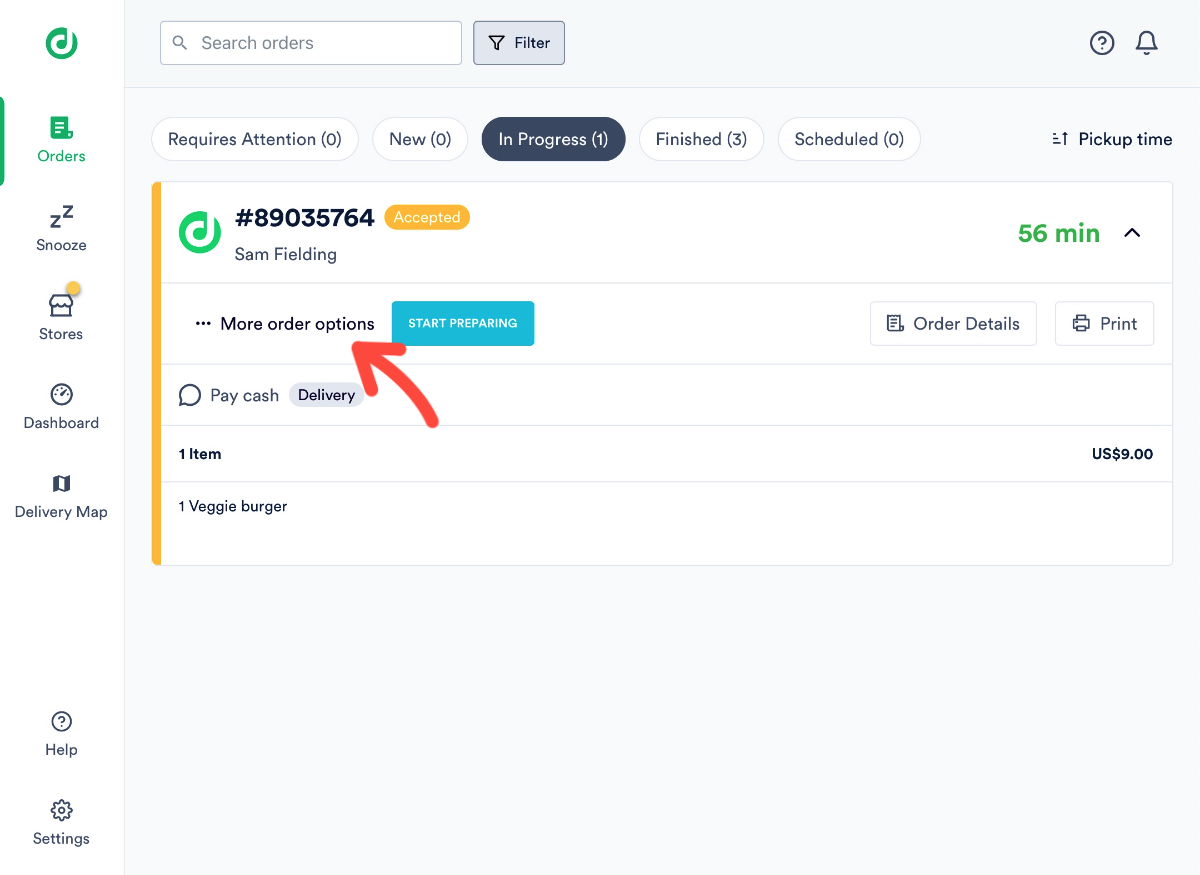
Open More order options from the order details screen.
Tap Cancel Delivery. Deliverect calls your Cancel Webhook URL.
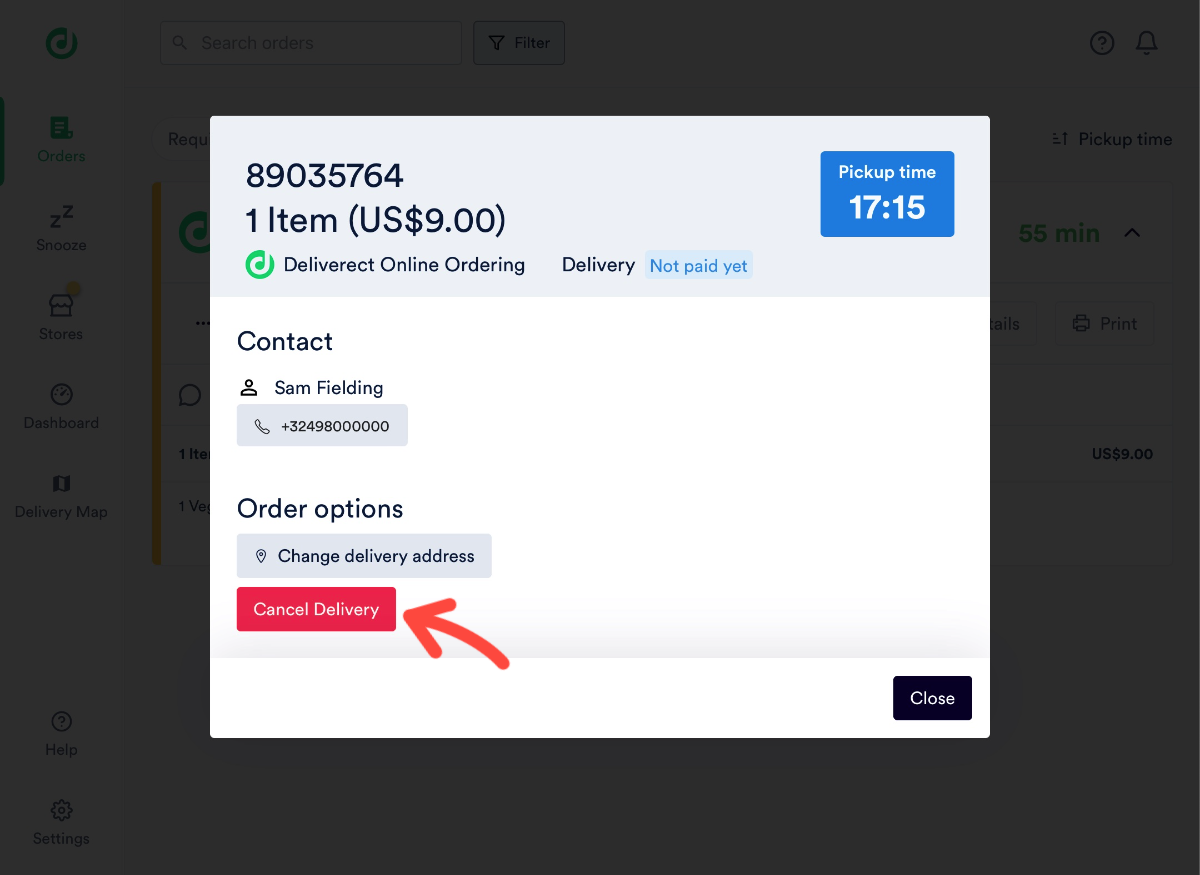
Select Cancel Delivery to trigger the cancel webhook.
Your webhook must respond according to the cancel delivery documentation. The app shows a message when the cancellation succeeds.
Create the delivery job without errors before you test the Cancel webhook.
Delivery Logs
Track any errors that Deliverect receives from a delivery. Find the order on the Orders page and select the Delivery job tab.
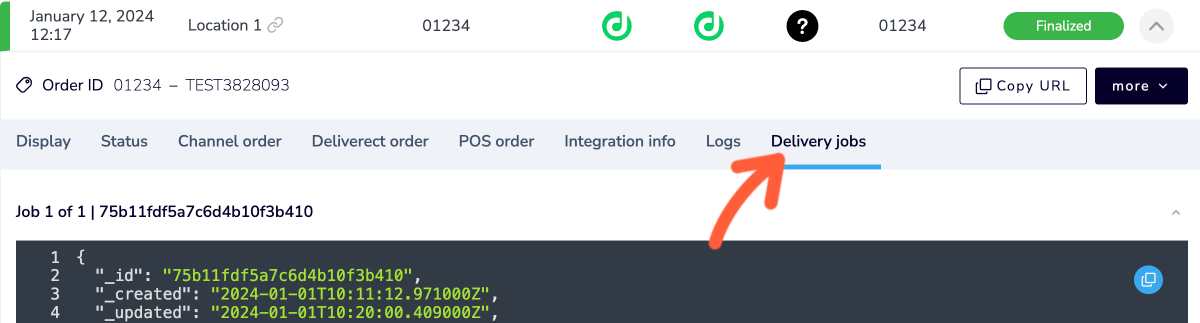
Use the Delivery job tab to review delivery errors.
Error handling and testing
Handle each integration state explicitly during testing:
If your integration cannot deliver an order, do not return "canDeliver": true in the Validate webhook response.
If an update or cancellation request fails, compare the request against the linked endpoint reference, correct the required fields, and resend the request.
Test the full order flow with the Delivery Manager App before using the integration in production.
Updated 2 months ago