

How to Connect a Loyalty Provider
This guide explains how to set up loyalty webhooks in your Deliverect account.
How to save your Loyalty Webhook URLs in staging
Step 1. Access your test customer account on our staging environment.
Step 2. Select More on account level and then Select Loyalty Settings
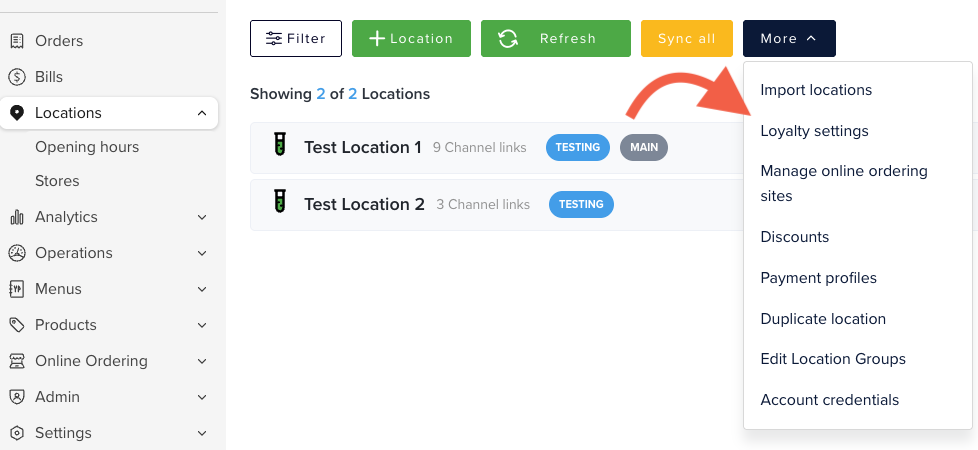
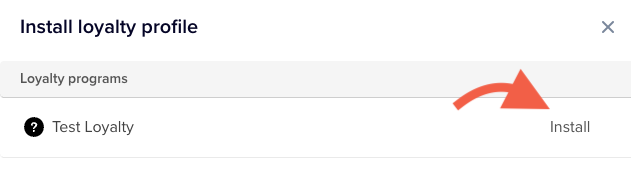
Step 3: Select your own provider name from the list. For example "Test Loyalty" and then click on Install.
Step 4 Complete the following fields:
Registration URL: The Registration URL is the endpoint provided by the loyalty partner where Deliverect can send the registration request. You need to provide this URL so we can initiate the registration call for the loyalty integration.
API Key: The unique API Key provided by the Loyalty Partner.
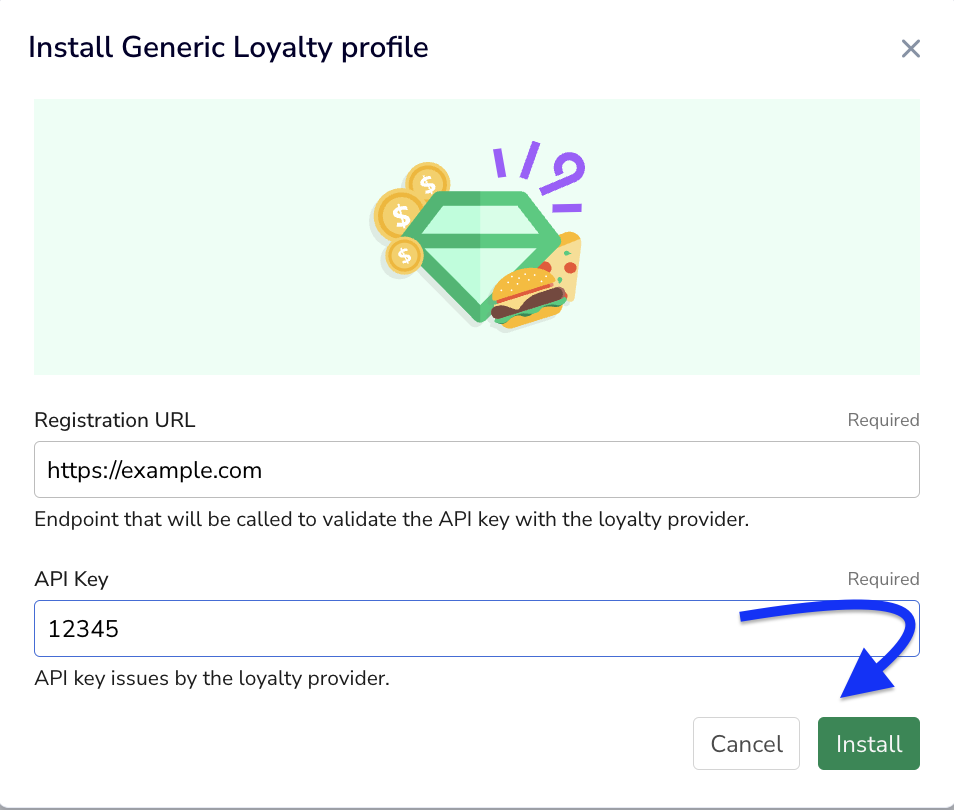
This triggers an API call to your Register Webhook URL. Deliverect will send you the following information:
{
    "account": "6401c934c43f86e*****eb9c",
    "apiKey": "123***890"
}
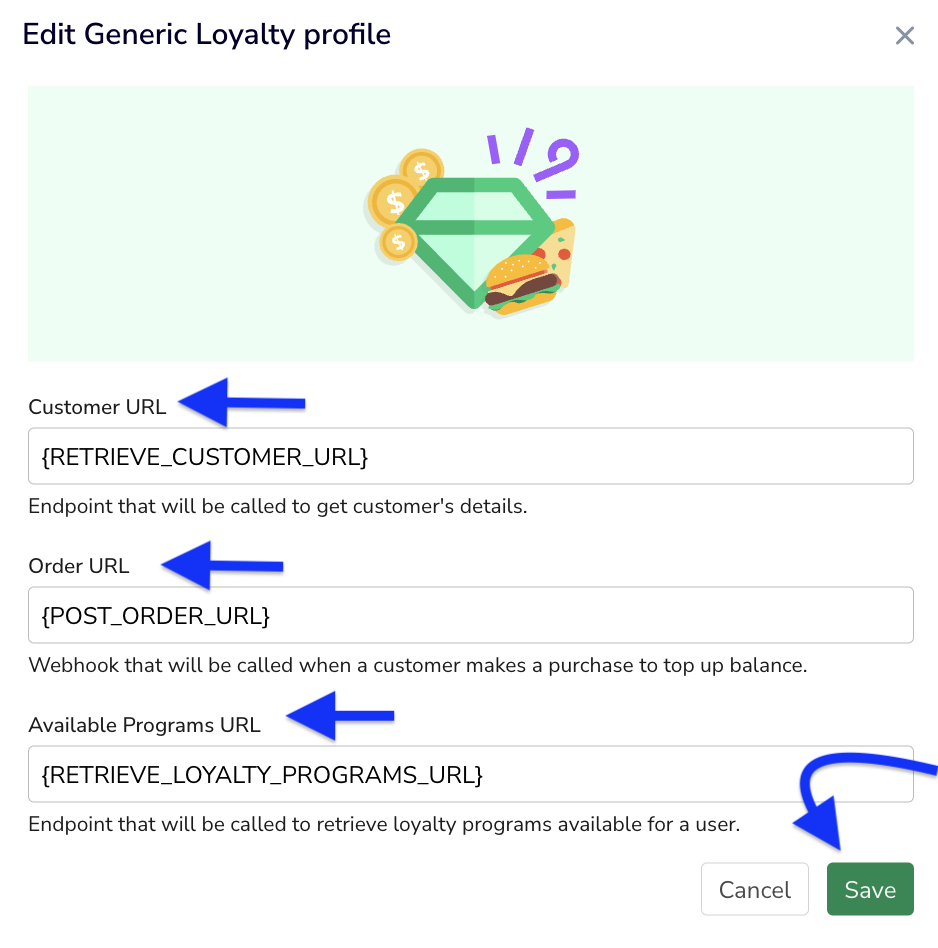
The response should contain the necessary URLs for the integration: Customer URL, Order URL, Available Programs URL, customerWalletURL
{
    "customerURL": "https://yourserver.com/customer",
    "customerWalletURL": "https://yourserver.com/customerWallet",
    "loyaltyProgramsURL": "https://yourserver.com/programs",
    "orderURL": "https://yourserver.com/orders"
}
Step 5: After successfully completing the registration, select the pencil to edit the Generic Loyalty Settings.
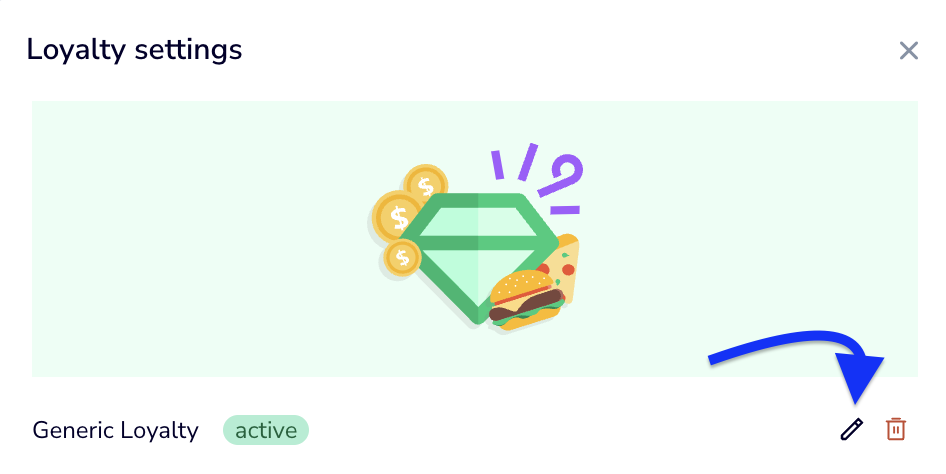
Step 6: TheCustomer URL, Order URL, Available Programs URL will be visible if the response to the regiser on step 4 was correct. Click on "Save".
Updated 3 months ago