

How to Request a Payment
Before checking out a basket using Deliverect Pay (DPay), the commerce platform must first initiate a payment request to the payment provider.
1. Get Payment Gateway
Retrieve the available payment methods for a given store (channelLinkId) under a customer account. See the API documentation.
Payment Gateways Configuration
Payment gateways must be created, configured, and linked to stores by the merchant before they can be used during the basket checkout process. For more information about how payment gateways are managed in Deliverect, read this article from our Help Centre.
Types of payment gateways
Merchants can create online and offline payment gateways in Deliverect. Online payment gateways allow end users to complete checkout through an online payment service, such as Adyen or Stripe. Offline payment gateways allow checkout to continue when the payment happens outside the scope of a commerce integration.
For a DPay integration, only gateways with
"paymentType": "online"are relevant because they support the required redirection. You can safely ignore non-online gateways.
  [
    {
        "id": "68e79ac****01c94d3044",
        "integration": 1,
        "paymentType": "online"
    }
]Initiate a payment request with the selected provider and return a redirect URL to complete the transaction. The payment remains pending until the transaction is finalized. See the API documentation.
Redirect the user to the URL returned in the payment request response.
{
    "paymentId": "68ed22c5***",
    "gateway": 1,
    "paymentStatus": "pending",
    "action": {
        "type": "redirect",
        "url": "https://checkout.providerredirect.com/c/pay/******g1a5cPaz2fbIdRRRmHXVKMi6rG7AljRysCBFY77U1BS64H#fidnandhYHdWc***********ndqcGthRmppancnPycmY2NjY2NjJyknaWR8anBxUXx1YCc%2FJ3Zsa2JpYFpscWBoJyknYGtkZ2lgVWlkZmBtamlhYHd2Jz9xd3BgeCUl"
    }
}
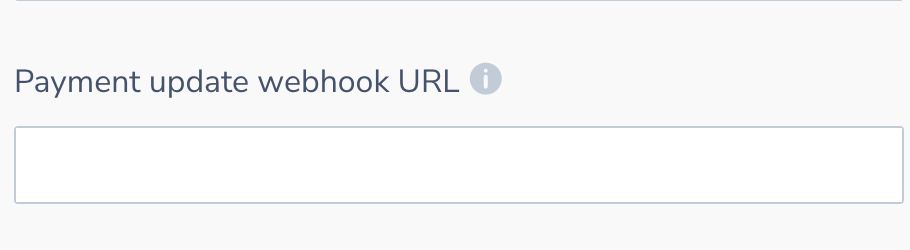
3. Configure the payment update webhook URL
Set a payment update webhook URL in the channel settings.;
{
    "paymentId": "6***2c****c***dda6636",
    "status": "authorized",
    "metadata": {
        "gatewayProfileLinkId": "68ed22c5***",
        "methodRaw": "visa"
    }
}After the payment update webhook confirms the payment with
"status": "authorized", the basket checkout can proceed.As an alternative, use the GET Payment endpoint to poll the current status.
Available endpoints
The following endpoints are available for payment requests.
| Endpoint | Type | Method | Purpose |
|---|---|---|---|
| GET Payment Gateways | Pay API endpoint | GET | Retrieve the payment methods linked to the store (= channelLinkId). |
| Request payment | Pay API endpoint | POST | Request a payment from the connected payment provider. |
| GET Payment | Pay API endpoint | GET | Retrieve the products inside an account. |
Available webhooks
The following webhooks are available for payment requests.
| Endpoint | Type | Method | Purpose |
|---|---|---|---|
| Payment update webhook URL | Pay API webhook | POST | URL set to receive payment updates. |
Updated 14 days ago